
Managing Divisions in High School Sport Zone
In High School Sport Zone, divisions—also known as groups, pools, or tiers—are used to organize teams within a league based on skill level, geography, or other criteria. This helps streamline scheduling, standings, and overall league management.
This article will guide you through the complete process of:
Creating divisions
Assigning them to leagues
Assigning teams to those divisions
Step 1: Navigate to the League Divisions Section
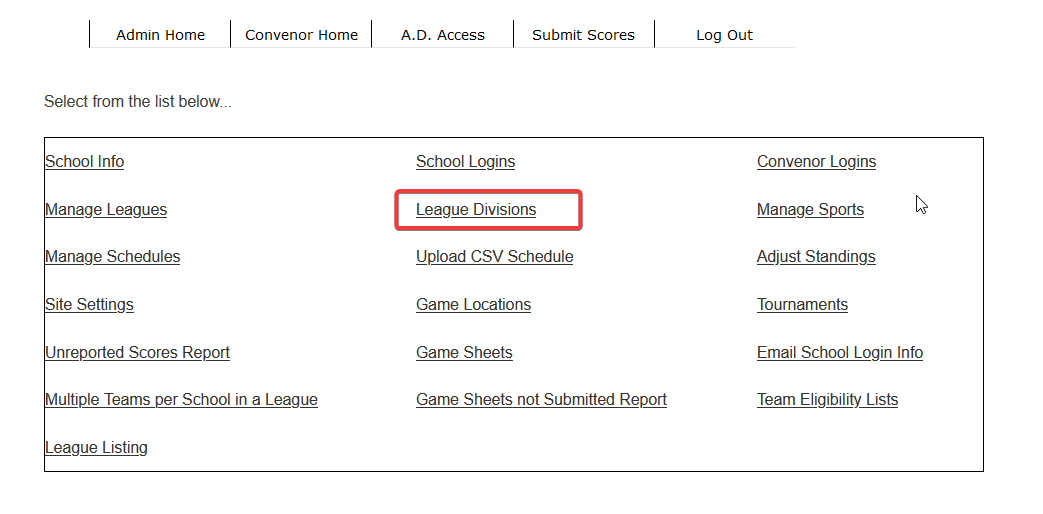 Step 1: Navigate to the League Divisions Section
From the Admin Home, locate and click on League Divisions.
In this section, you'll find four main options for managing divisions.
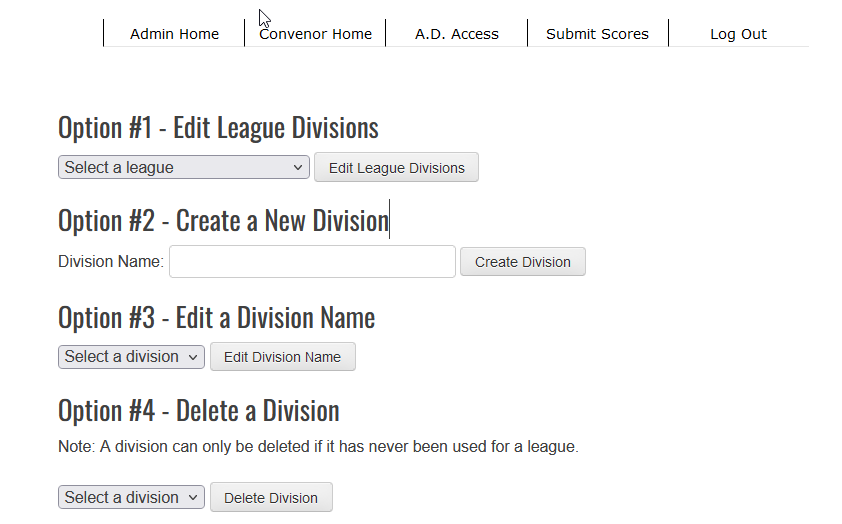
Option 1: Edit League Divisions
Use this option to assign or remove divisions from existing leagues.
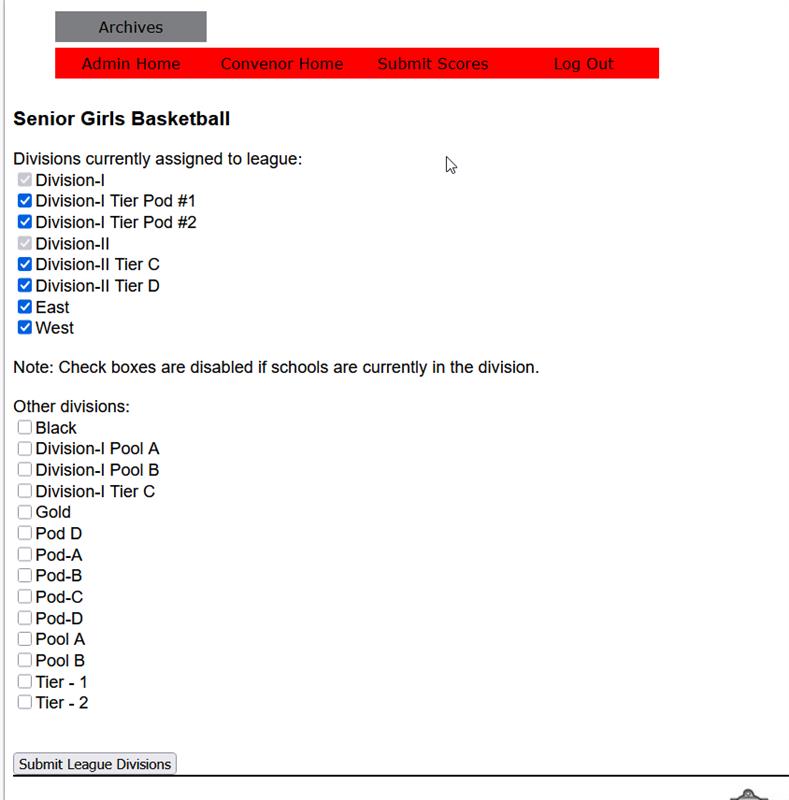
To edit a league’s divisions:
Select the desired league from the dropdown list.
Click Edit League Divisions.
Check or uncheck division boxes as needed.
Click Submit League Divisions to save your changes.
💡 To assign teams to specific divisions within the league, you'll need to complete Step 3 under the Manage Leagues section.
📝 Note: If this is your first time setting up divisions, start with Option 2 to create them before proceeding.
Option 2: Create a New Division
Use this option to create division titles before assigning them to leagues.
To create a division:
Enter the new division name (e.g., "Tier 1", "Pool A") into the text field.
Click Create Division.
✅ Tip: Avoid duplicate division names for clarity and easier future management.
Option 3: Edit a Division Name
Use this option to update the name of an existing division.
To edit a division name:
Select the division from the dropdown menu.
Click Edit Division Name.
Enter the new name and save your changes.
Option 4: Delete a Division
This option allows you to remove divisions that are no longer needed.
To delete a division:
Choose the division from the dropdown menu.
Click Delete Division.
⚠️ Important: A division can only be deleted if it has never been assigned to a league.
Now that you have managed your divisions you can assign them Divisions to a league. to do this
Go to the League Divisions tab (you can find this from the Admin Home or after adding a division).
Scroll to Option #1 – Assign Divisions to a League.
Use the dropdown menu to select the league you want to assign your division to.
Click the Edit League Divisions button.
On the next page, find your newly created division in the list and check the box beside it to assign it to the selected league.
Once finished, click Submit League Divisions at the bottom of the page.
The division is now part of your selected league and ready for team assignments.
Step 2: Assign Divisions to a League
Once your divisions have been created, assign them to a league:
Return to the League Divisions section.
Under Option 1 – Assign Divisions to a League, select the appropriate league.
Click Edit League Divisions.
Check the box next to each division you want to assign to the league.
Scroll down and click Submit League Divisions.
Your divisions are now associated with the league and ready for team assignments.
Now assign the teams to a division
Step 3: Assign Teams to Divisions
Go back to Admin Home.
Click Manage Leagues from the dropdown menu.
Under Edit Information for an Existing League, select the league you just updated.
Click Edit League.
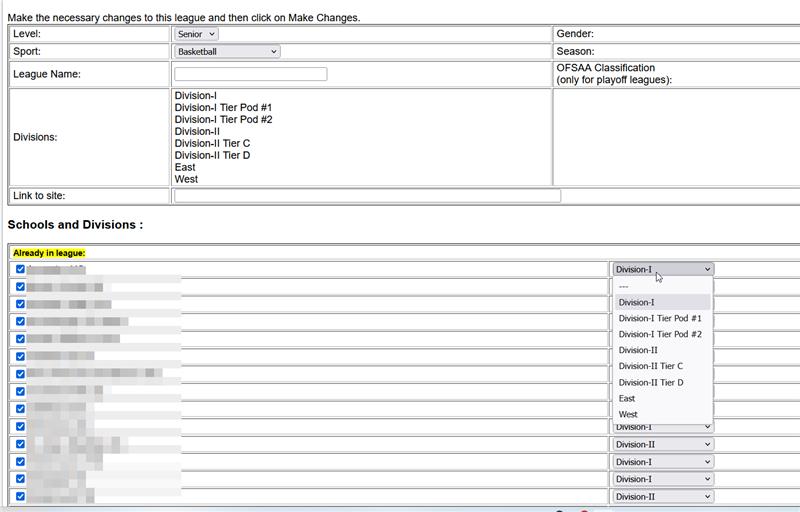
On the following page, you’ll see all teams in that league. Use the dropdowns or checkboxes to place each team in the appropriate division.
Click Submit to save your changes.
✅ Tip: Ensure each team is placed in only one division per league to avoid scheduling conflicts.
Step 3: Assign Teams to the Division
Return to Admin Home, and select Manage Leagues from the dropdown menu.
Under Edit Information for an Existing League, choose the league you just updated with the new division.
Click the Edit League button.
-
On the next page, you'll see a list of teams associated with that league. Use the dropdowns or checkboxes provided to place each team into the correct division.
Tip: Make sure each team is only placed in one division within a league to avoid scheduling conflicts.
Once your team assignments are complete, click Submit to save the changes.
Additional Notes
Divisions can be renamed or reused across multiple seasons.
Use terminology—divisions, groups, pools, or tiers—that suits your sport or regional structure. These terms are functionally equivalent in the system.
Assigning divisions correctly helps ensure accurate scheduling, standings, and competition flow.
Need Help?
If you encounter any issues or need assistance, please reach out to our support team:
📧 Email: support@univerussport.com